> ## Documentation Index
> Fetch the complete documentation index at: https://platform.kimi.ai/docs/llms.txt
> Use this file to discover all available pages before exploring further.
# Setting Up and Verifying Your Organization
When you register and log in to the Open Platform account, you can find your organization ID on the **Organization Management** - **Organization Verification** page. The organization ID is the unique identifier for your organization.
## **Configure IP Whitelist**
IP Whitelist is an organization-level security setting on Kimi Open Platform. After organization verification is completed, you can configure an IP whitelist. Once saved, only IP addresses in the whitelist can access APIs under the current organization. API requests from IP addresses outside the whitelist will be denied.
When the IP whitelist is empty, API requests are not restricted by source IP. When saved, the current list overwrites the existing configuration.
### **Entry and Permissions**
After logging in to [Kimi Open Platform](https://platform.kimi.ai/), go to **Organization Management** - **Organization Verification** from the left sidebar. After verification is completed and the current account has permission, the **IP Whitelist** entry will be displayed in the upper-right corner of the page.
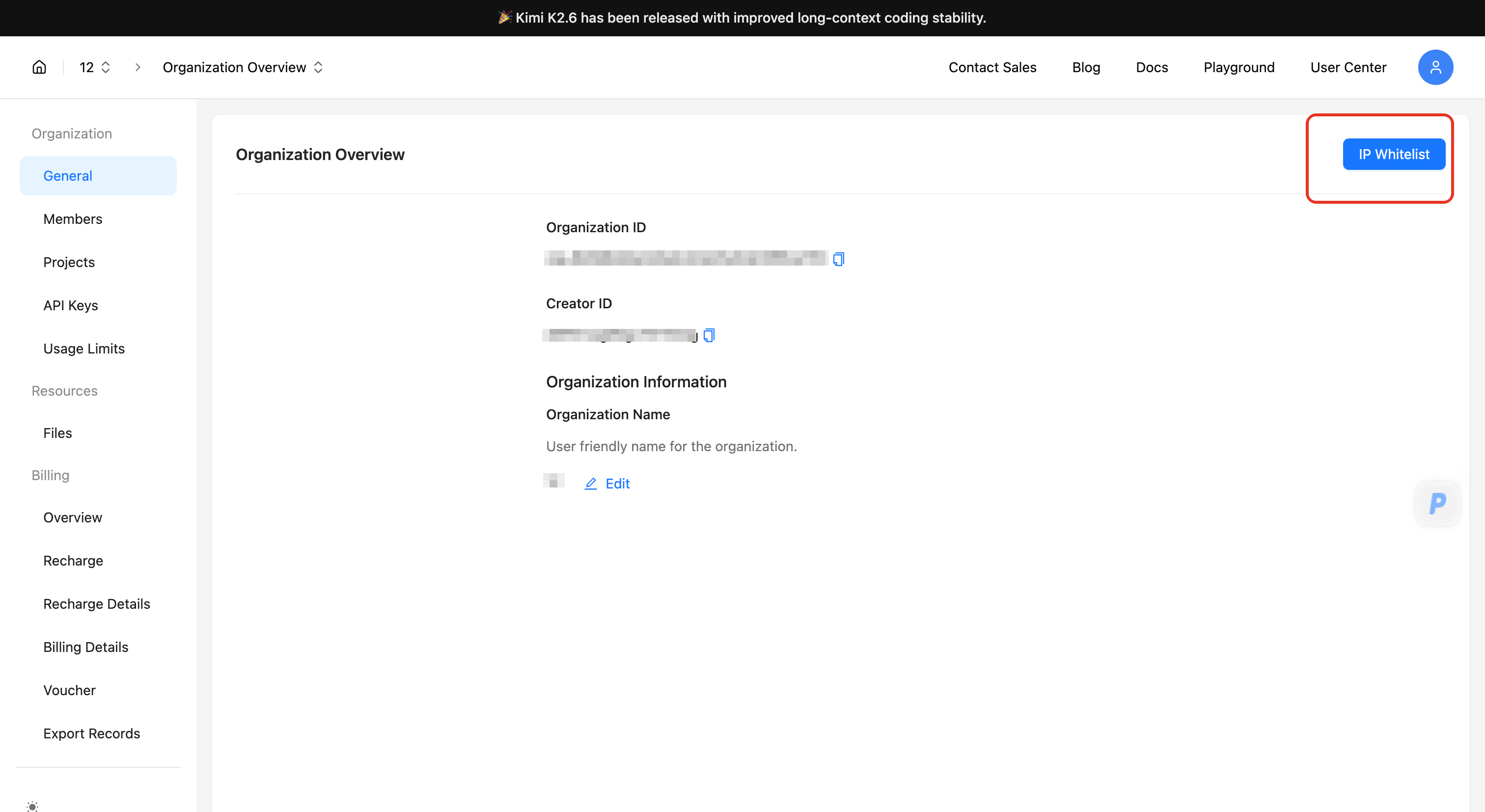 The entry and configuration permissions are as follows:
| **Organization Status** | **Entry Displayed** | **Who Can Configure** |
| :-------------------------------------- | :------------------ | :----------------------------------------------- |
| Organization verification not completed | No | None |
| Organization verification completed | Yes | Current organization account |
| Enterprise Verified | Yes | Organization creator, organization administrator |
If you do not see the **IP Whitelist** entry, first check whether organization verification has been completed. For enterprise organizations, only the organization creator and organization administrators can see and configure the entry.
### **Fill in the IP / CIDR List**
Click **IP Whitelist**, then fill in the allowed IP addresses or CIDR ranges in the **IP / CIDR List** field.
The entry and configuration permissions are as follows:
| **Organization Status** | **Entry Displayed** | **Who Can Configure** |
| :-------------------------------------- | :------------------ | :----------------------------------------------- |
| Organization verification not completed | No | None |
| Organization verification completed | Yes | Current organization account |
| Enterprise Verified | Yes | Organization creator, organization administrator |
If you do not see the **IP Whitelist** entry, first check whether organization verification has been completed. For enterprise organizations, only the organization creator and organization administrators can see and configure the entry.
### **Fill in the IP / CIDR List**
Click **IP Whitelist**, then fill in the allowed IP addresses or CIDR ranges in the **IP / CIDR List** field.
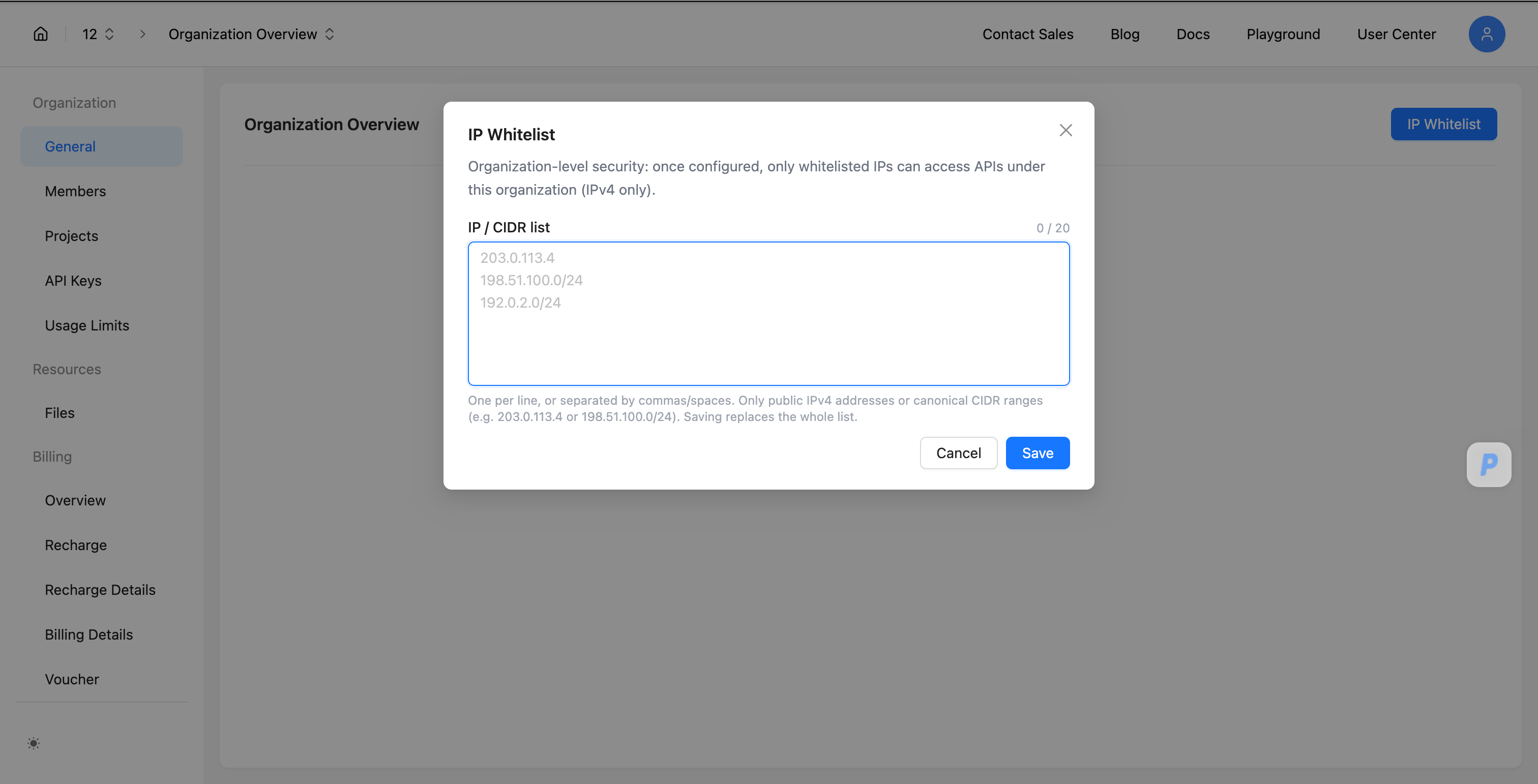 Please note:
* Enter one item per line. You can also separate items with commas or spaces.
* You can configure up to 20 items.
* Only public IPv4 addresses and valid IPv4 CIDR ranges are supported.
* IPv6 is not currently supported.
* Saving the whitelist overwrites the existing configuration.
Example:
```text theme={null}
203.0.113.4
198.51.100.0/24
52.94.76.0/22
13.107.42.0/24
```
You can also write them as:
```text theme={null}
203.0.113.4, 198.51.100.0/24 52.94.76.0/22 13.107.42.0/24
```
Before configuring the whitelist, make sure your service uses a fixed public IPv4 egress address. If your service is deployed behind a cloud provider, proxy gateway, NAT gateway, or corporate network, enter the actual public egress IP address used when calling the Kimi API.
### **Format Validation**
The system validates the input before saving. The following items cannot be saved:
* IPv6 addresses;
* private IPv4 addresses or private IPv4 ranges;
* loopback addresses, link-local addresses, multicast addresses, reserved addresses, and other non-public IPv4 addresses;
* invalid CIDR ranges;
* lists with more than 20 items.
Common invalid examples:
| **Type** | **Examples** |
| :------------------------------- | :----------------------------------------- |
| Private address or range | `192.168.1.1`, `10.0.0.1`, `172.16.0.0/12` |
| Carrier-grade NAT shared address | `100.64.0.0/10` |
| Loopback address | `127.0.0.0/8` |
| Link-local address | `169.254.0.0/16` |
| Multicast or reserved address | `224.0.0.0/4`, `240.0.0.0/4` |
If the input contains invalid items, the dialog will show an error message and mark the invalid entries. Fix the issues before saving.
### **Clear the IP Whitelist**
To remove IP whitelist restrictions, open the **IP Whitelist** dialog, clear all content in the **IP / CIDR List** field, and click **Save**.
After the empty list is saved, API access under the current organization will no longer be restricted by IP whitelist checks.
### **Scope**
The IP whitelist applies to API access under the current organization. After it is configured, API Keys under the current organization are subject to this whitelist when calling APIs. If your business has multiple network egress points, add all required public egress IP addresses or CIDR ranges to the whitelist.
## Organization Balance Alert
To prevent service interruptions due to insufficient account balance, we recommend configuring balance alerts in the [Organization Management Settings](https://platform.kimi.ai/console/account).
* The platform provides customizable balance alert thresholds, with a default setting of \$5
* When your account balance drops below the configured threshold, the system will automatically send notification emails to the organization's registered email address
Please note:
* Enter one item per line. You can also separate items with commas or spaces.
* You can configure up to 20 items.
* Only public IPv4 addresses and valid IPv4 CIDR ranges are supported.
* IPv6 is not currently supported.
* Saving the whitelist overwrites the existing configuration.
Example:
```text theme={null}
203.0.113.4
198.51.100.0/24
52.94.76.0/22
13.107.42.0/24
```
You can also write them as:
```text theme={null}
203.0.113.4, 198.51.100.0/24 52.94.76.0/22 13.107.42.0/24
```
Before configuring the whitelist, make sure your service uses a fixed public IPv4 egress address. If your service is deployed behind a cloud provider, proxy gateway, NAT gateway, or corporate network, enter the actual public egress IP address used when calling the Kimi API.
### **Format Validation**
The system validates the input before saving. The following items cannot be saved:
* IPv6 addresses;
* private IPv4 addresses or private IPv4 ranges;
* loopback addresses, link-local addresses, multicast addresses, reserved addresses, and other non-public IPv4 addresses;
* invalid CIDR ranges;
* lists with more than 20 items.
Common invalid examples:
| **Type** | **Examples** |
| :------------------------------- | :----------------------------------------- |
| Private address or range | `192.168.1.1`, `10.0.0.1`, `172.16.0.0/12` |
| Carrier-grade NAT shared address | `100.64.0.0/10` |
| Loopback address | `127.0.0.0/8` |
| Link-local address | `169.254.0.0/16` |
| Multicast or reserved address | `224.0.0.0/4`, `240.0.0.0/4` |
If the input contains invalid items, the dialog will show an error message and mark the invalid entries. Fix the issues before saving.
### **Clear the IP Whitelist**
To remove IP whitelist restrictions, open the **IP Whitelist** dialog, clear all content in the **IP / CIDR List** field, and click **Save**.
After the empty list is saved, API access under the current organization will no longer be restricted by IP whitelist checks.
### **Scope**
The IP whitelist applies to API access under the current organization. After it is configured, API Keys under the current organization are subject to this whitelist when calling APIs. If your business has multiple network egress points, add all required public egress IP addresses or CIDR ranges to the whitelist.
## Organization Balance Alert
To prevent service interruptions due to insufficient account balance, we recommend configuring balance alerts in the [Organization Management Settings](https://platform.kimi.ai/console/account).
* The platform provides customizable balance alert thresholds, with a default setting of \$5
* When your account balance drops below the configured threshold, the system will automatically send notification emails to the organization's registered email address 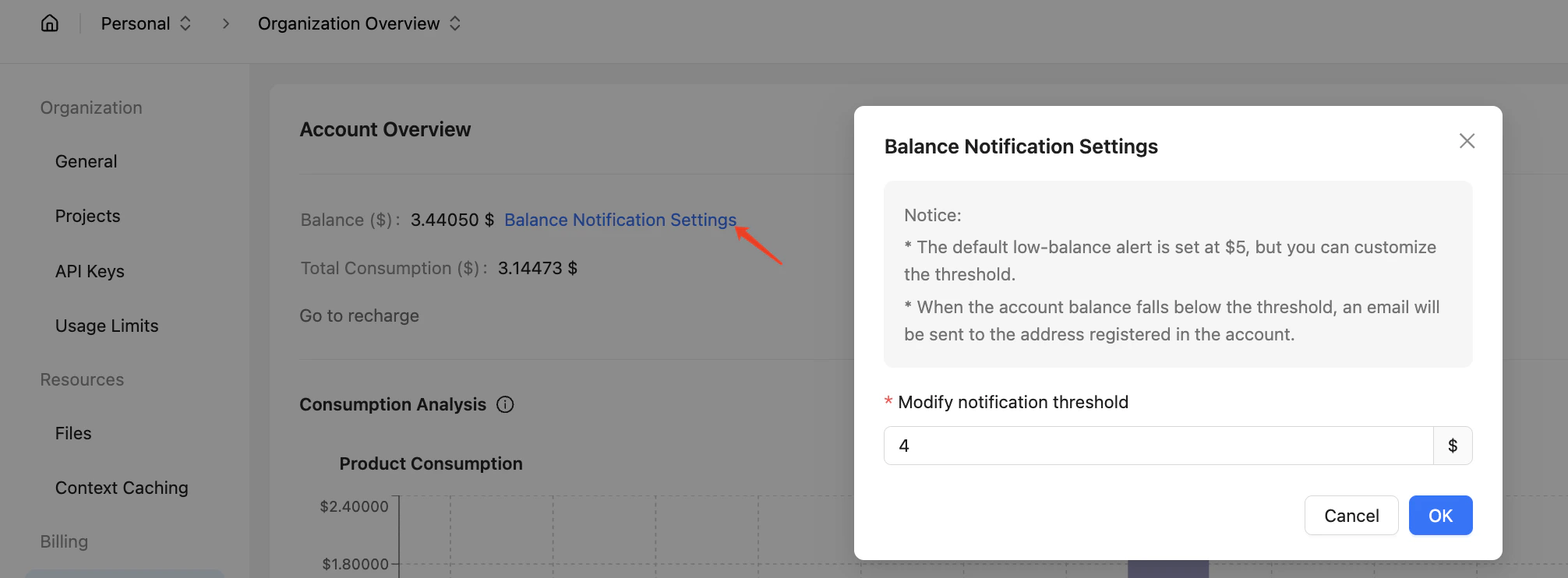 ## Managing Projects and Usage Limits
To meet the needs of multiple business product lines under a single organization, or to distinguish between production and testing environments, you can create multiple projects under your organization. Within each project, you can create an API Key. The calls made using the project's API Key will be recorded under the project's consumption, allowing you to independently manage the usage of different projects.
### Project Balance and Rate Limiting
* All projects under an organization share the organization's rate limits.
* All projects under an organization share the organization's account balance.
### Project Consumption Management
* The platform now supports setting monthly and daily consumption budgets on a per-project basis. You can set the monthly or daily consumption limits for each project on the **Project Management** - **Project Settings** - **Project Budget/Rate Limiting Settings** page. Once the API Key consumption within a project reaches the set budget, any subsequent API requests for that project will be denied, effectively helping you manage your business budget. Due to billing cycle issues, the actual enforcement of these limits may have a delay of about 10 minutes.
## Managing Projects and Usage Limits
To meet the needs of multiple business product lines under a single organization, or to distinguish between production and testing environments, you can create multiple projects under your organization. Within each project, you can create an API Key. The calls made using the project's API Key will be recorded under the project's consumption, allowing you to independently manage the usage of different projects.
### Project Balance and Rate Limiting
* All projects under an organization share the organization's rate limits.
* All projects under an organization share the organization's account balance.
### Project Consumption Management
* The platform now supports setting monthly and daily consumption budgets on a per-project basis. You can set the monthly or daily consumption limits for each project on the **Project Management** - **Project Settings** - **Project Budget/Rate Limiting Settings** page. Once the API Key consumption within a project reaches the set budget, any subsequent API requests for that project will be denied, effectively helping you manage your business budget. Due to billing cycle issues, the actual enforcement of these limits may have a delay of about 10 minutes.
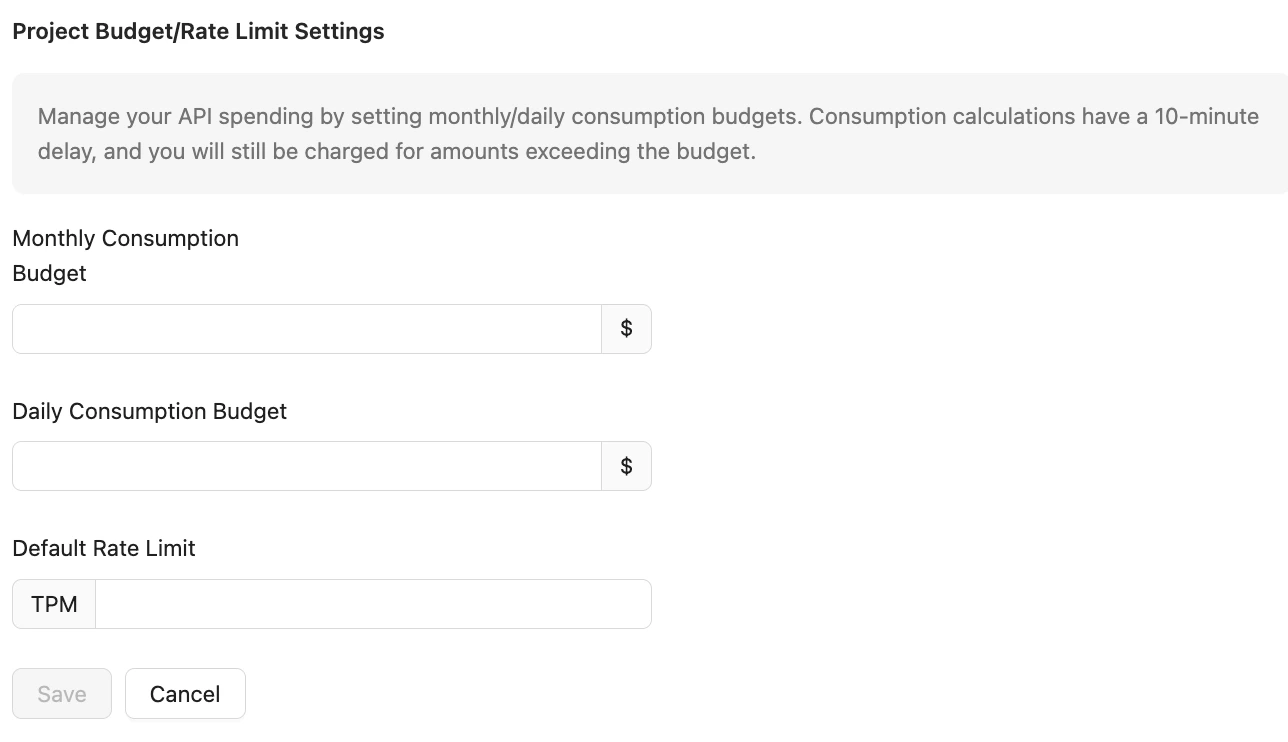 * If you wish to limit the maximum TPM (Transactions Per Minute) for a single project, you can configure the project's TPM rate limit independently. If the project's API Key requests reach this TPM, the requests will be denied. (The project's TPM must not exceed the organization's TPM. If you set a value higher than the organization's TPM, the organization's TPM will be used for rate limiting.)
* The platform also provides an overview page for both the organization and individual projects, offering consumption analysis at both levels to help you get a clear understanding of your organization's spending.
### Project Quantity Limitations
The number of projects your organization can create depends on the type of organization verification. The upper limits for different verification types are as follows:
| Organization Type | Project Limit | API Key Limit |
| ------------------- | ------------- | ------------- |
| Default | 20 | 50 |
| Enterprise Verified | 50 | 100 |
If you have additional requirements, please fill out the [Contact Sales](https://platform.kimi.ai/console/contact-sales) form for consultation.
## Member Management
### Organization Member Management
To help you manage your organization, you can invite new members on the **Organization Management** - **Member Management** page. The platform generates a dedicated invitation link for each new member. The invitee can use this link to register and log in to the Open Platform and join your organization.\
**Note:** Please visit the [Set Organization Information](https://platform.kimi.ai/console/general) page to maintain your organization's info and complete your enterprise verification as a prerequisite.
* If you wish to limit the maximum TPM (Transactions Per Minute) for a single project, you can configure the project's TPM rate limit independently. If the project's API Key requests reach this TPM, the requests will be denied. (The project's TPM must not exceed the organization's TPM. If you set a value higher than the organization's TPM, the organization's TPM will be used for rate limiting.)
* The platform also provides an overview page for both the organization and individual projects, offering consumption analysis at both levels to help you get a clear understanding of your organization's spending.
### Project Quantity Limitations
The number of projects your organization can create depends on the type of organization verification. The upper limits for different verification types are as follows:
| Organization Type | Project Limit | API Key Limit |
| ------------------- | ------------- | ------------- |
| Default | 20 | 50 |
| Enterprise Verified | 50 | 100 |
If you have additional requirements, please fill out the [Contact Sales](https://platform.kimi.ai/console/contact-sales) form for consultation.
## Member Management
### Organization Member Management
To help you manage your organization, you can invite new members on the **Organization Management** - **Member Management** page. The platform generates a dedicated invitation link for each new member. The invitee can use this link to register and log in to the Open Platform and join your organization.\
**Note:** Please visit the [Set Organization Information](https://platform.kimi.ai/console/general) page to maintain your organization's info and complete your enterprise verification as a prerequisite.
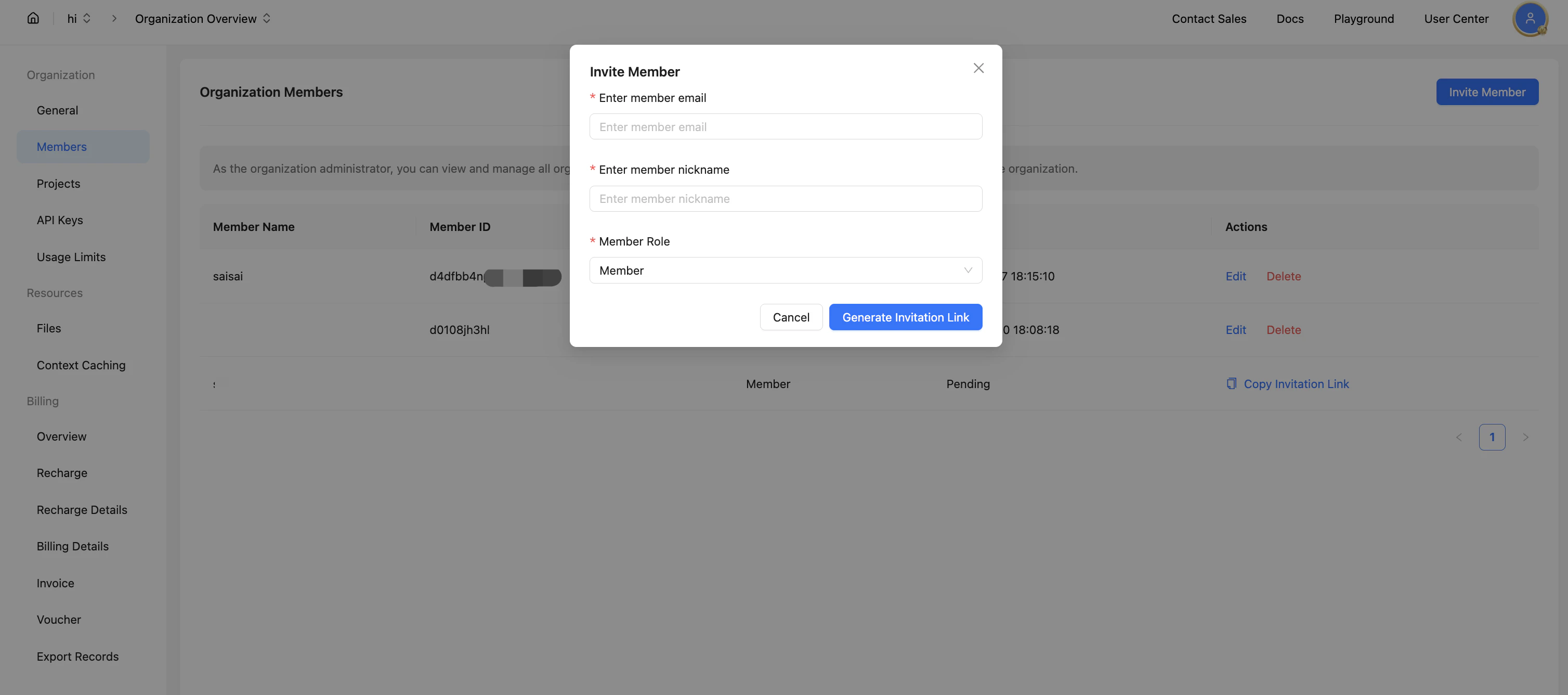
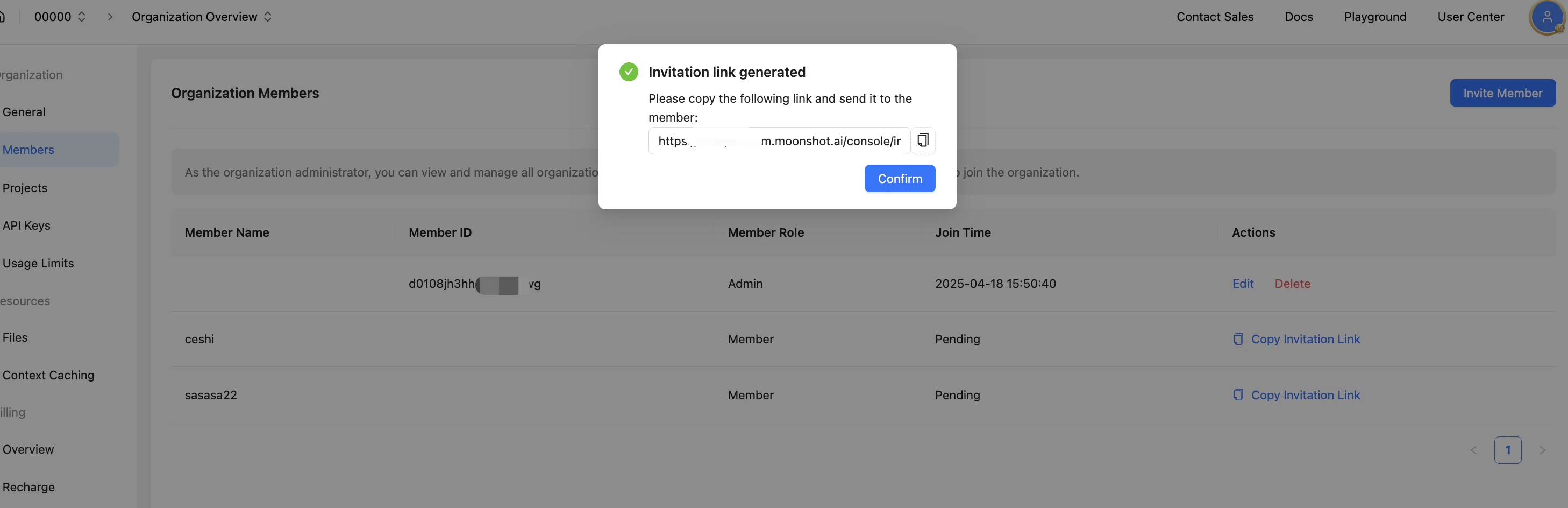 * **Organization Administrator**: The organization creator is the default administrator. Administrators can create projects, invite and manage members, and issue invoices.
* **General Member**: General members can only view projects. They must be invited to join a project to gain access to project resources.
### Project Member Management
Organization administrators can create projects and invite organization members to join and help manage projects. Project members can create their own API Keys within the project to utilize project resources.
* **Project Administrator**: Can manage project budget/rate limits/consumption notifications, invite members, and create API Keys.
* **General Project Member**: Can only view projects / create API Keys.
### Project API Key Management
It is recommended that each project member creates their own API Key within a project rather than sharing keys. When a member is removed from a project, all API Keys created by that member will also be invalidated, helping your organization effectively manage project resources.
* **Organization Administrator**: The organization creator is the default administrator. Administrators can create projects, invite and manage members, and issue invoices.
* **General Member**: General members can only view projects. They must be invited to join a project to gain access to project resources.
### Project Member Management
Organization administrators can create projects and invite organization members to join and help manage projects. Project members can create their own API Keys within the project to utilize project resources.
* **Project Administrator**: Can manage project budget/rate limits/consumption notifications, invite members, and create API Keys.
* **General Project Member**: Can only view projects / create API Keys.
### Project API Key Management
It is recommended that each project member creates their own API Key within a project rather than sharing keys. When a member is removed from a project, all API Keys created by that member will also be invalidated, helping your organization effectively manage project resources.